
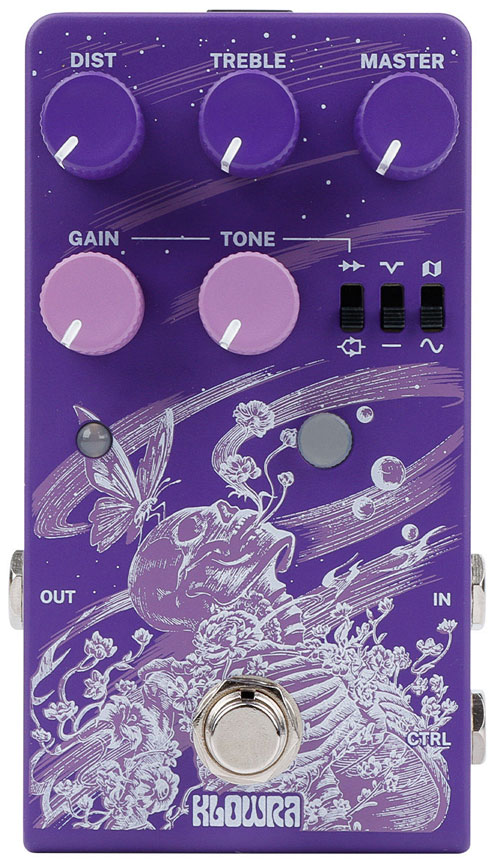
The Gnash Distortion is a dual-channel analog distortion pedal that offers a surprising amount of versatility compared to a typical distortion pedal.
In this review, I’ll walk through how you’re able to dial in very different styles of distortion (with audio clips) and combine them with a secondary channel in interesting ways.
This is the second Klowra pedal I’ve reviewed – check out my thorough review of the fantastic Klowra Verdict Poly Octave Pedal here.
Learn more about distortion and drive effects in my comprehensive Guitar Effects Course here.
Klowra Gnash Distortion Pedal Features
Here are the main features of the Gnash Distortion pedal:
- Dual-channel analog distortion
- Three MOD selection switches: Wavefolder / Hard Clip, Mid Cut / ’90s Black-Box EQ, Stack / Parallel
- Snap-Mod function to switch between two MOD configurations
- External control via TS/TRS footswitch (single or dual)
- True Bypass
- Power-Up Modes for customizing trigger behavior and LED brightness
The Gnash does not come with a power supply, so you’ll need your own 9V DC center-negative adapter with at least 90mA of current.
Check out the current price and full details of the Klowra Gnash Pedal here (link to Amazon).
Klowra Gnash Distortion Pedal Ease of Use
The Gnash is fairly straightforward for a pedal with this much versatility. While there are quite a few combinations you can toggle with the MOD selections, the main controls are simple and feel like any other distortion pedal.
Once you learn the basics of the MOD selection switches, the Snap-Mod feature, and the power-up modes, I found it’s a simple pedal to use.
Understanding the Control Layout
The Gnash has five main knobs (three for the main distortion channel and two for the secondary channel):
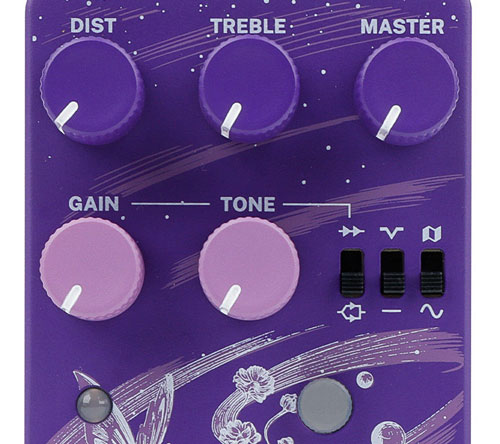
As you would expect, the DIST, TREBLE, and MASTER knobs (purple) control the main distortion channel.
The lower GAIN and TONE knobs (pink) are used for the secondary channel. The white line for those two knobs also points to the first toggle switch, which is also dedicated to the secondary channel (covered later).
A dedicated LED is lit when the secondary channel is enabled (lower left of above photo). The LED button (lower right) indicates when the pedal is active.
The LED Button and Snap-Mod
The LED button toggles the Secondary Channel on and off. You can also press and hold the LED button to save your current MOD switch selection as a Snap-Mod (a snapshot you can jump to instantly mid-song).
When a Snap-Mod is saved, the LED will blink violet to confirm. You can then trigger your Snap-Mod at any time by pressing and holding the main footswitch. The LED turns violet when Snap-Mod is active, and the pedal returns to your regular MOD settings when you release or retrigger the footswitch.
The way you might use this is to change the type of distortion mid-song for a solo or bridge section. You would save the alternate distortion as the Snap-Mod, then when you want to change from your normal distortion sound to the saved sound, you simply hold down the footswitch. Then when that solo or bridge section is over and you want to return to your normal distortion sound, you hold down the footswitch again to return to normal.
The color indicators are straightforward once you memorize what they mean:
- White: Snap-Mod function is ready
- Violet: Snap-Mod is currently active
It would’ve been great if the pedal had two footswitches to independently toggle the secondary channel and the Snap-mod whenever you want. But it is possible to connect an external footswitch if you really want this type of flexibility.
MOD Selection Switches
The three slide switches on the Gnash are what make this pedal special compared to typical distortion pedals.
I’ll go through audio examples later to demonstrate how these switches give you access to different styles of distortion.
Each switch selects between two options. This is how the manual describes what each switch does to your tone:
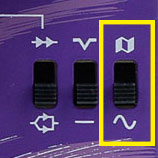
Distortion Texture (Right Switch)
- Wavefolder: Folds peaks back into the waveform, adding upper harmonics and controlled grit that ranges from a subtle edge to something more synth-like and aggressive.
- Hard Clip: Classic hard-clipping distortion with a tight, aggressive crunch and quick attack.
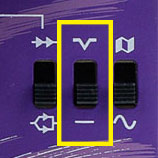
EQ Voicing (Middle Switch)
- Mid Cut: Scoops the mids to emphasize lows and highs, adding clarity and space.
- ’90s Black-Box EQ: Recreates the classic ’90s “black-box” character using a matching voicing curve.
Signal Routing (Left Switch)
This switch is used to control how the secondary channel is mixed with the main channel. If the secondary channel isn’t active, this switch won’t impact your tone.
- Stack: Routes the Secondary Channel into the Main Channel in series. This pushes the Main Channel into higher gain, which works well for lead tones with extra sustain.
- Parallel: Runs the Secondary Channel alongside the Main Channel at the same time, layering the two sounds together.
Using Snap-Mod
Snap-Mod lets you save one MOD switch configuration as a go-to snapshot and toggle to it at any time. In other words, the Snap-Mod is a preset you can save to the pedal.
To set it up:
- Set your three MOD switches to your desired “destination” tone
- Press and hold the LED button to save this as your Snap-Mod (LED blinks violet to confirm)
- Set your MOD switches back to your regular tone
- Press and hold the footswitch to jump to your Snap-Mod
When you’re in Snap-Mod (LED turns violet), your saved MOD settings are active. When you exit, the pedal returns to whatever your current MOD switches are set to.
This is a great feature for live performance. For example: you could keep your rhythm tone set up on the switches and save a different style distortion for your lead tone as the Snap-Mod.
External Control with Dual Footswitch
The Gnash’s CTRL input accepts a TS or TRS footswitch for extra flexibility.
For this review, I tested the Gnash with the Klowra Animus Dual Footswitch (link to Amazon), which provides two footswitches in a single unit.
When using a dual footswitch, the controls work as follows:
- Tip (A): Toggles the Secondary Channel on/off
- Ring (B): Toggles Snap-Mod on/off
This is a handy setup for live use as it lets you control the Secondary Channel and Snap-Mod independently without needing to press and hold the main footswitch or LED button. A single footswitch connected via the CTRL jack will simply toggle the Secondary Channel on and off.
Note: connecting the external footswitch requires a quick activation step: when you first plug the external footswitch into the pedal, the LED will flash red. Tap the external footswitch repeatedly until the pedal recognises it and returns to normal operation. If you connect a dual footswitch, you need to tap both footswitches so the pedal learns that there are two footswitches available to control the settings. You only need to repeat this step if you unplug the external footswitch.
Power-Up Modes
The Gnash includes Power-Up Modes that let you configure a couple of extra settings. I really liked how these power-up modes allowed me to customize the Klowra Verdict pedal. The Gnash doesn’t offer as many power-up modes as the Verdict, but they’re still useful.
To access these settings, hold down the main footswitch while powering on the pedal. The LED button and Secondary LED will both light up solid to confirm you’ve entered Power-Up Mode. Short-press the footswitch to exit and save when you’re done.
Footswitch Trigger Modes: Controls how the Secondary Channel (via external footswitch) and Snap-Mod behave:
- Momentary (LED flashes red): The function is only active while you hold down the footswitch
- Latched (LED flashes green): One press activates the function and a second press deactivates it
LED Brightness: Press and hold the LED button to cycle brightness up and then back down. Release when you reach your preferred level.
These settings are simple to configure and likely only need to be set once. Whether you prefer momentary or latched behavior comes down to your playing style. For a distortion pedal, you’ll likely want to use latched mode. But the momentary mode is fun to experiment with.
Klowra Gnash Distortion Pedal Sound Quality
What I like about the Gnash is that you have three layers of distortion to experiment with: the main channel, the secondary channel, and the Snap-mod.
Once you dial in the style of distortion you like using the MOD selection toggles, you can layer that distortion with the secondary channel, or you can switch between that distortion and a different style distortion using the Snap-mod. It’s an interesting way to use a distortion pedal and I’m really enjoying the tones you can get out of it.
Let’s go through a few audio clips so you can hear these features in action.
All of these audio clips were recorded with the Gnash connected directly to an audio interface. The distorted tone was sent to a Marshall-style clean amp and cab using the IK Multimedia Tonex plugin.
Wavefolder vs Hard Clip
The two main types of distortion are created through the far right toggle, which sets between ‘Wavefolder’ and ‘Hard clip’.
Here’s the Wavefolder setting with low gain:
Compare that to Hard Clip with the same low gain setting:
Here’s Wavefolder again with medium gain:
Compare that to Hard Clip with medium gain:
Finally, here’s Wavefolder with high gain:
Compare that to Hard Clip with high gain:
If it isn’t obvious in the above clips (wear headphones for the best results), it’s very obvious in person how much difference there is in character between the two settings. There’s plenty of gain available on both Wavefolder and Hard Clip and both of them can clean up quite well on very low gain settings.
Keep in mind that all other settings were kept exactly the same with all of the above clips, so the only differences you’re hearing in the above clips is the level of gain and the Wavefolder/Hard Clip types. Changing other settings does let you shape the distortion far more than what you hear above.
Mid Cut vs ’90s Black-Box EQ
The EQ Voicing switch (the middle switch) gives the pedal two distinct tonal identities. Mid Cut produces a scooped sound while the ’90s Black-Box EQ shifts the character toward something more vintage, with the mids pushed forward in a way that gives the tone more body and presence.
Here’s the Mid Cut option with Hard Clip:
Compare that to the ‘90s Black-Box EQ also with Hard Clip:
It’s a subtle EQ change, and you can adjust the Treble knob if you want a more dramatic change in tone. I think I would prefer having a Mid EQ knob instead of a two-option toggle, but I do like the two options they’ve created.
Using the Secondary Channel
Once you dial in a distortion by tweaking the above settings, there are two different ways you can add the secondary channel to the mix whenever you want something a bit extra.
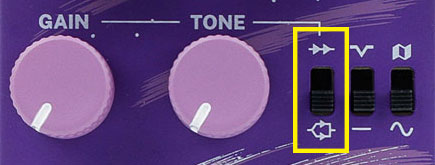
As you can see above, you have a Gain and Tone knob to adjust the Secondary Channel distortion, but in the clips below, I’ll keep the Tone knob set to 12 o’clock and the Gain knob set to about 1 o’clock.
Here’s a clip of a distortion with the Secondary Channel off, with a clip demonstrating the sustain of the distortion:
Take note of the way the sustain falls off towards the end of the clip. There’s plenty of sustain without the Secondary Channel.
‘Stack’ will place the Secondary and Main Channels in series (one after the other). You can think of it like two distortion pedals connected together in your effects chain.Turning the secondary channel on effectively adds another distortion pedal to your pedal chain in front of the main channel distortion.
Here’s what Stack sounds like with the Secondary Channel on:
This had the Secondary Channel gain knob set to 12 o’clock, so there’s plenty of extra gain available compared to the above clip.
You can hear how stacking the channels adds quite a lot of sustain without burying the tone in distortion. There is zero physical amp feedback at play here as I recorded directly into the audio interface using headphones.
The other options is ‘Parallel’, which runs the Secondary Channel and Main Channel in parallel. In other words, both channels are running together at the same time and mixed together.
Here’s what Parallel sounds like with the Secondary Channel on (may be slightly louder on headphones):
Every other setting is exactly the same in all three clips, so you can easily hear how the way the secondary channel is routed changes the tone.
I did not compensate for volume, so you will notice how the parallel setting is louder, yet has less sustain compared to the Stack setting.
There are times when I prefer the Stack option and other times I prefer the Parallel option. Which is why the Snap-Mod setting can be handy – you can easily switch types by toggling Snap-Mod to access the other option whenever you want.
Overall Impressions of the Klowra Gnash Distortion Pedal
I’m impressed with the distortion tones the Gnash produces and the different ways you can customize the tone. Changing between the ‘wavefolder’ and ‘hard clip’ settings makes it instantly clear how you can dial in different styles of distortion on this pedal. Even changing the secondary channel between series and parallel mixing makes it clear how much freedom you have in shaping your tone.
Being able to use the secondary channel for extra gain or boost gives this pedal so much versatility. Unfortunately, the secondary channel is toggled using the LED button, so unless you connect an external footswitch, you’re not going to be able to use it properly during a performance.
It’s a similar issue with the Snap-mod. It’s a great way to save a preset of the MOD selection toggles, but you can only switch to those settings after holding down the main footswitch. It’s usable, but hard to precisely time the change during a performance. Again, if you connect a dual external footswitch, you will then be able to instantly toggle the MOD selection as you like.
As much as I enjoy simple distortion pedals like a Tubescreamer or a Klon, pedals like the Gnash can offer so much more.
Klowra Gnash Distortion Pedal Pros and Cons
Pros
- Nice variety of good-sounding distortion tones
- Secondary channel provides a great boost or extra gain
- Plenty of gain available to use
Cons
- You can’t activate the secondary channel using your foot (unless you connect an external footswitch)
- The Snap-mod can only be toggled by holding down the footswitch (makes it hard to time tone changes)
Check out the current price and full details of the Klowra Gnash Pedal here (link to Amazon).
Who is the Klowra Gnash Distortion Pedal For
The Gnash is well-suited to a wide range of guitarists:
Guitarists Who Want Versatility: The combination of two channels and the different ways you can tweak the distortion means the Gnash can cover a lot of tonal ground without needing multiple drive pedals. Keep in mind the Gnash doesn’t save multiple presets, so if you’re in a cover band and need to access a wide range of distortions for different songs, a preset-based multi-effects pedal will likely be a better option.
Players Who Need a Good Lead Boost: The secondary channel works very well as a gain boost for lead playing, adding sustain and extra drive without a separate boost pedal. Although I would only recommend this if you use the Gnash with an external footswitch.
I’ve been impressed with the two Klowra pedals I’ve tried so far (read my review of the Klowra Verdict Poly Octaver Pedal here). The market for gain pedals is never-ending, so it’s nice to see a pedal like the Gnash offering something a bit different.


